 Cozy Nerd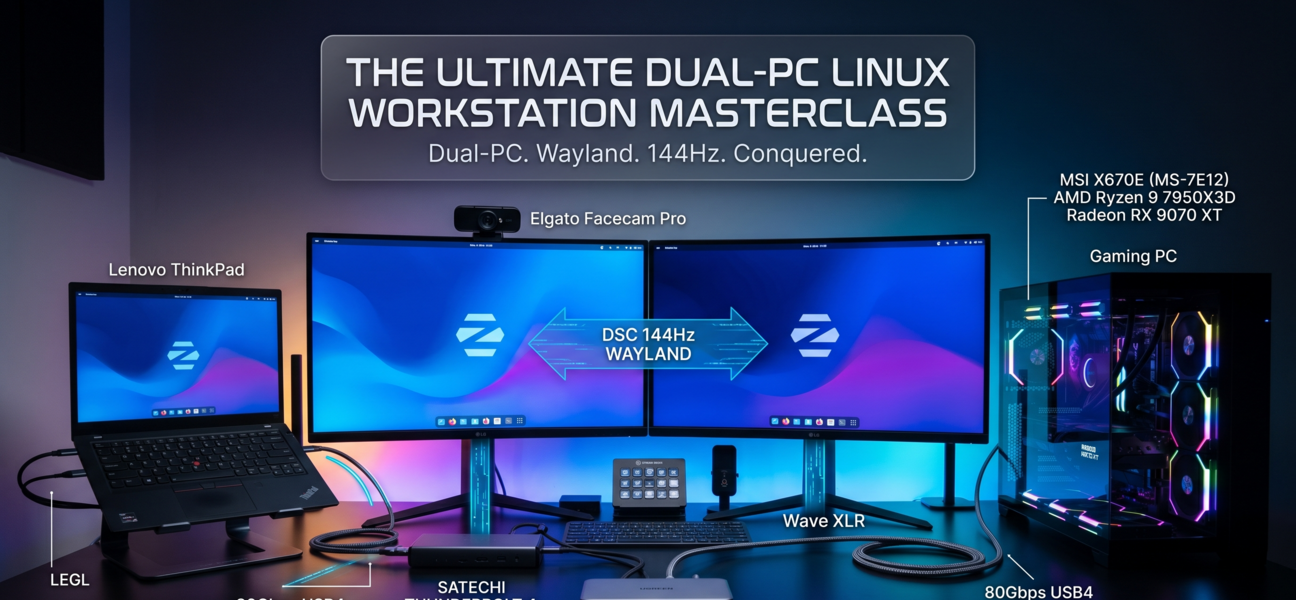
Have you ever tried building your absolute dream desk setup, only to have the laws of physics and kernel drivers completely refuse to cooperate? We recently set out to build the ultimate dual-PC workstation running 100% on Linux (Zorin OS 18.1 Pro). We wanted to share our dual 1440p 144Hz monitors, an Elgato Facecam Pro, a Stream Deck+, a Wave XLR, and an Arctis Nova Pro between two radically different machines using a single UGREEN 10Gbps KVM switch.
The Contenders:
- The Workhorse: Lenovo ThinkPad (Docked via Satechi Thunderbolt 4 Pro)
- The Gaming Beast: MSI X670E, AMD Ryzen 9 7950X3D, Radeon RX 9070 XT
It sounded great on paper. In reality, we ran headfirst into DisplayPort alt-mode traps, Wayland refresh rate bugs, and aggressive USB power-saving defaults. After pulling system logs and mapping out our USB tree, we finally tamed the beast. If you're struggling with a similar setup, here is the complete, hard-won guide to making it work seamlessly.
Phase 1: Taming Wayland & The "Clamshell Panic"
The "Clamshell Panic"
Because the ThinkPad lives in "clamshell" mode (lid closed), hitting the KVM switch to jump to the gaming PC immediately severed the external monitors. The Linux kernel (specifically systemd-logind) looked around, saw zero active displays and a closed lid, and panicked. Assuming it had been tossed into a backpack, it forcefully put the laptop to sleep, dropping all network connections and SSH sessions.
The Fix: We had to tell the laptop to stay awake as long as it had external power.
sudo nano /etc/systemd/logind.conf

# Find and uncomment this line, changing it to 'ignore':
HandleLidSwitchExternalPower=ignore

# Restart the daemon to apply the new rules:
sudo systemctl restart systemd-logind
Now, Wayland just quietly freezes the desktop into a RAM buffer when the displays disconnect, keeping everything running in the background.
The Wayland 144Hz Handshake
We also noticed that cold-booting the laptop while docked would sometimes lock our monitors to 60Hz. It turns out that during a cold boot, the CPU is so busy loading the OS that the AMD GPU driver takes just a microsecond too long to calculate Display Stream Compression (DSC). Wayland times out and drops to a safe 60Hz.
The Workaround: The "Hot-Plug." Boot the laptop undocked, log in, and then plug in the master Thunderbolt cable. With the CPU idle, the DSC math completes flawlessly, and 144Hz unlocks instantly.
Phase 2: Fixing "Peripheral Amnesia" (USB Autosuspend)
When switching the KVM back and forth, our Stream Deck would occasionally freeze up, throwing error -71 or libusb Segmentation Faults in the kernel logs.
Why? Our USB tree was incredibly deep: Motherboard → KVM Hub → Stream Deck Hub → Peripherals. Linux loves to save power, so it aggressively puts inactive USB hubs to sleep. When we switched the KVM back over, the xhci driver demanded an instant handshake. The nested hubs took too long to wake up, the driver timed out, and apps like StreamController crashed.
The Fix: We killed USB Autosuspend entirely via the GRUB bootloader to keep the power flowing constantly.
sudo nano /etc/default/grub

# Add usbcore.autosuspend=-1 to your existing parameters:
GRUB_CMDLINE_LINUX_DEFAULT="quiet splash usbcore.autosuspend=-1"

sudo update-grub
Phase 3: The MUX Chip Trap & "USB 3 Required"
Here’s where things got really wild. When connected to the MSI Gaming PC, our Elgato Facecam Pro completely refused to turn on, shouting "USB 3 required for operation."
The culprit? The included KVM cable. Modern AMD motherboards use complex Multiplexer (MUX) chips behind their USB-C ports to figure out if you're plugging in a monitor or a data hub. The stock cable had mediocre shielding. When the KVM attempted a 10Gbps handshake, it created tiny electrical noise. The MUX chip panicked, assumed the cable was bad, and physically dropped the connection down to USB 2.0 (480 Mbps). The Facecam suffocated.
(Pro Tip: Never use those little USB-C to USB-A adapters that come in the box for high-bandwidth gear. Most only wire the 10Gbps pins on one side. Plug it in upside down, and you’re instantly throttled to USB 2.0!)
Phase 4: Brute-Forcing Physics (The 80Gbps Overkill)
To defeat the picky AMD MUX chips and ensure pristine signal integrity, we decided to stop playing games and brute-force the physics. We threw out the stock cables and replaced the master uplinks with USB4 Gen 4 (80Gbps) cables (specifically kept to a short 3.3FT / 1m length).
This sounds like overkill, but it was the magic bullet. To get an 80Gbps rating, these cables require the thickest coaxial shielding and strictest impedance matching on the market.
- On the Gaming PC: The MUX chip sensed zero electrical noise, instantly recognized the KVM as a high-speed data hub, and blasted the 10Gbps pipeline wide open. The Facecam roared to life.
- On the Laptop: That heavy shielding also protected the delicate EDID sideband wires. Plugging the laptop in with the "Ninja Plug" method (fast, firm, and straight in) stopped electromagnetic interference from scrambling our monitor IDs, totally curing our "Unknown Display" morning boot errors.
The Verdict
Building a high-end Linux workstation isn't just about plugging things in; it's about understanding how your hardware talks to your kernel. By adjusting our power states in GRUB, understanding Wayland's refresh rate behaviors, and respecting the raw physics of USB-C signal integrity, we turned a glitchy, frustrating setup into an indestructible productivity and gaming machine.
If your high-bandwidth USB devices are dropping, or your displays are acting up on a KVM, don't blame the OS right away. Check your sleep states, ditch the cheap adapters, and seriously consider investing in premium, heavily shielded cables. Your kernel will thank you!


